A coastal photograph paired with five glazed representative color tiles.

ONELESS / COLOR

Color Palette from Image

A photograph or illustration often holds a small collection of colors worth carrying into another design. Color Palette from Image summarizes that collection with representative swatches. Choose a local picture, set a maximum color count and see the approximate source locations beside the extracted palette.

Open Color Palette from Image. JavaScript powers the workspace; the full guide is available below.

UNDERSTAND THE RESULT

Color, with a little context.

Representative colors are averages

The image is reduced to a bounded sample with a longest side of 160 pixels. Similar samples are grouped, and each swatch averages its group. The numbered point is the closest sampled location, not a promise that the exact swatch exists at that pixel.

A maximum, not a forced count

Choose a maximum from 3 to 8. A flat image may contain only one useful color, and Merge similar colors can reduce the result further. The tool does not invent extra colors to fill the requested number.

Transparency and proportions

Pixels below 10% opacity are excluded. Other samples are weighted by alpha without compositing onto white. Returned swatches are opaque representatives; percentages are sampled cluster weights, not exact full-resolution area measurements.

HOW TO USE IT

From a starting point to a usable result.

  1. Choose or drop a still JPG, PNG or WebP, or use Sample. Limits are 25 MB, 16 megapixels and 16,384 pixels per side.
  2. Choose Maximum colors and decide whether to merge nearby colors. The palette recalculates from the same bounded image sample.
  3. Select a swatch or numbered marker to inspect its estimated share and nearby original-image coordinates. Copy selected, the full HEX list or CSS variables.

A WORKED EXAMPLE

A simple two-color picture

A picture containing only opaque red and blue can return two swatches even when Maximum colors is five. A wholly transparent picture returns no usable samples. These outcomes describe the input instead of filling empty slots with invented colors.

EVERYDAY USES

Make the next small decision easier.

Carry an image into a page palette

Use the extracted shades as a starting point for a page that accompanies the image. Check text/background contrast separately before using the palette in an interface.

Compare a visual direction

Extract a compact palette from a mood image and copy the list into a brief. For an exact individual pixel, use Image Color Picker instead.

LOCAL WORKSPACE

Your work stays in this browser.

The tool processes color values and your selected image locally. It does not upload the input to a processing server or save it in browser storage. Leaving or reloading the page clears the working state. Copying places the selected result on your clipboard; sharing sends only the page address without your working values.

These tools describe sRGB colors. Browser decoding, color management and the display can affect what you see; they are not an ICC proofing workflow or a print-color guarantee. Read the site privacy policy for information about the surrounding website.

KEEP IT NEARBY

One less search next time.

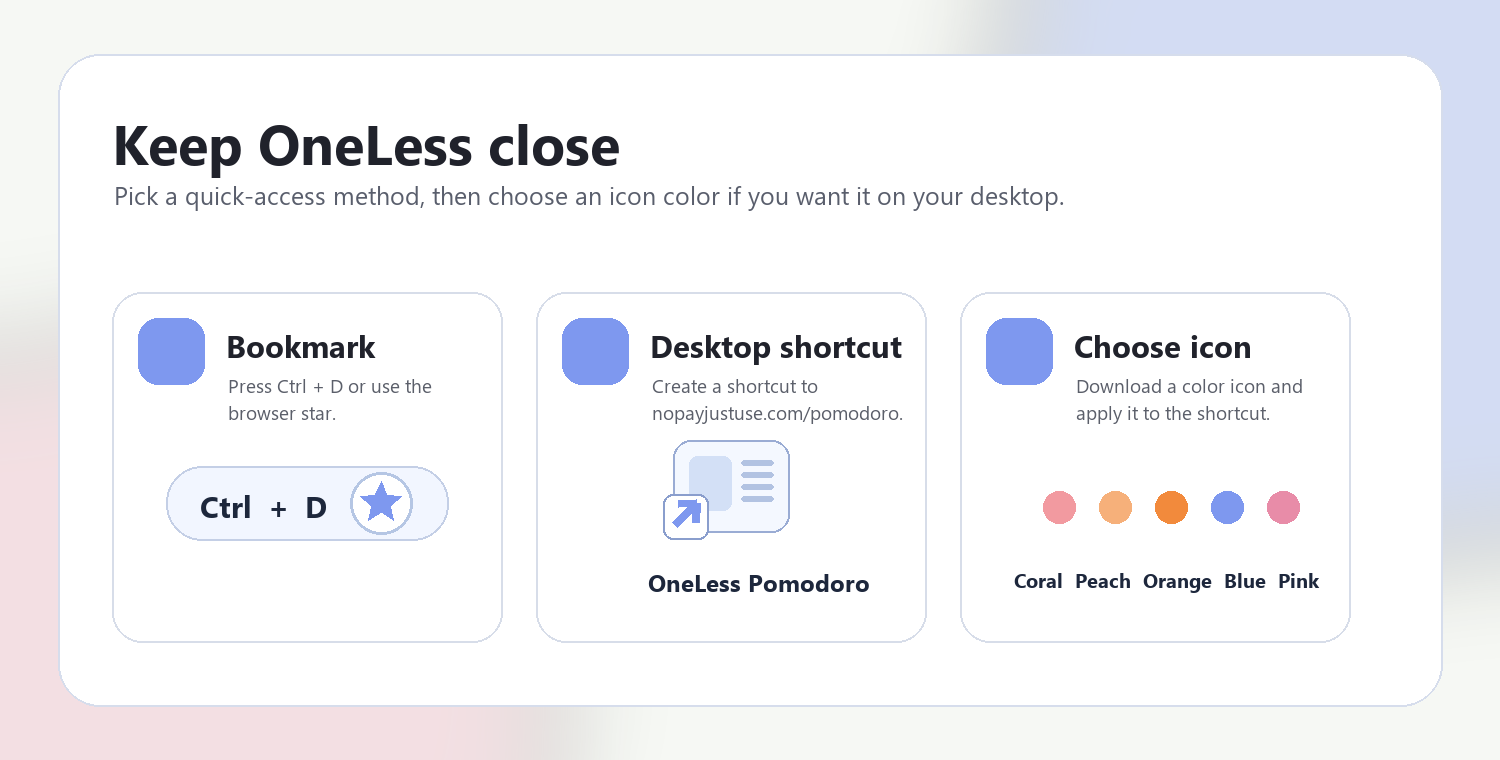
Press Ctrl + D on Windows or Command + D on Mac to bookmark this page. Your browser may also offer Create shortcut or Add to Home Screen. Shortcuts open the tool; they do not include your colors or images.

Adding a OneLess browser shortcut

Choose a shortcut icon

QUESTIONS, ANSWERED

A few useful details.

Does my image leave the browser?

No. File validation, decoding, sampling and grouping happen locally in this tool. The image is not saved in browser storage.

Why are some colors missing?

A small detail can disappear during downsampling, and nearby shades may share a group. Try disabling Merge similar colors or increasing the maximum count; exact pixel sampling belongs in Image Color Picker.

Why do marker colors differ from the swatches?

Swatches are averages of groups. Markers locate the nearest available sample, mapped back to approximate original-image coordinates. They are guides to the source, not exact pixel matches.

Which files are supported?

Still JPEG, PNG and WebP within the stated bounds. Animated PNG/WebP, GIF, SVG and HEIC are not included. Fully transparent or nearly transparent images may yield no usable samples.

Why is a palette color different from the exact pixel I clicked elsewhere?

Representative colors summarize clusters in a reduced sample of the image. They need not equal a particular original pixel; use Image Color Picker when you need that exact pixel.

What do the percentage values describe?

They approximate the share of sampled, alpha-weighted image color assigned to each cluster. They are not a full-resolution count of every pixel or a measure of visual importance.

Why are fewer colors returned than I requested?

A picture may contain too few distinct visible colors. Similar clusters can merge, and nearly transparent pixels are excluded rather than turned into artificial palette entries.

REFERENCES

CSS color values — MDN

ANOTHER SMALL STEP

Keep the next tool close.

Explore Color Tools ↗

Ready for a little more color?

Find the colors that give your picture its character.

Return to Color Palette from Image ↑