A magnifier over draft beside a revised card labeled final.

ONELESS / TEXT

Find and Replace

A repeated word can turn a small edit into a tedious task. Find and Replace locates a literal word or phrase, previews the revised text, and leaves the original alongside it. Use the match view to understand what will change before taking a separate copy.

Open Find and Replace. JavaScript powers the local workspace.

UNDERSTAND THE RESULT

A little clarity before the next click.

Literal text means literal text

A period matches a period and a dollar sign matches a dollar sign. Neither search nor replacement interprets regular expressions, capture groups or replacement commands. An empty replacement removes matches. An empty search leaves the source unchanged.

Word boundaries are explicit

Whole word excludes matches immediately next to a Unicode letter, number or underscore. It is useful for matching cat without catalog. This is a character-boundary rule, not linguistic word segmentation for every language.

Matches do not overlap

Replacement walks through the original once. Inserted text is not searched again. Match case distinguishes uppercase and lowercase; otherwise Unicode case-insensitive matching is used. Replace the first match only stops after the first eligible occurrence.

HOW TO USE IT

From your original to a useful copy.

  1. Paste your source text. Enter the word or phrase in Find and the desired text in Replace with. Both fields accept line breaks.
  2. Set Match case, Whole word or Replace the first match only when needed. Select Show matches to highlight occurrences in the source.
  3. Inspect Result and Copy result. Clear empties the source while retaining your search settings; Reset options clears the three matching options.

A WORKED EXAMPLE

Change a phrase without changing its neighbors

For cat catalog cat, find cat and replace it with dog. Whole word returns dog catalog dog. Without Whole word, the result is dog dogalog dog.

Small tasks in a real working day.

Update a repeated label

Replace a project label or recurring phrase throughout a plain-text draft, then compare the revised copy with the original.

Remove unwanted literal text

Leave Replace with empty to remove a repeated marker. Include any spaces or line breaks you want removed in the Find field.

Your words stay in this browser.

The tool processes pasted text locally. It does not upload your input to a processing server or save it in browser storage. Leaving or reloading clears the working state. Copy places the result on your clipboard; Share sends only the page address. Read the site privacy policy for the surrounding website.

KEEP IT NEARBY

One less search next time.

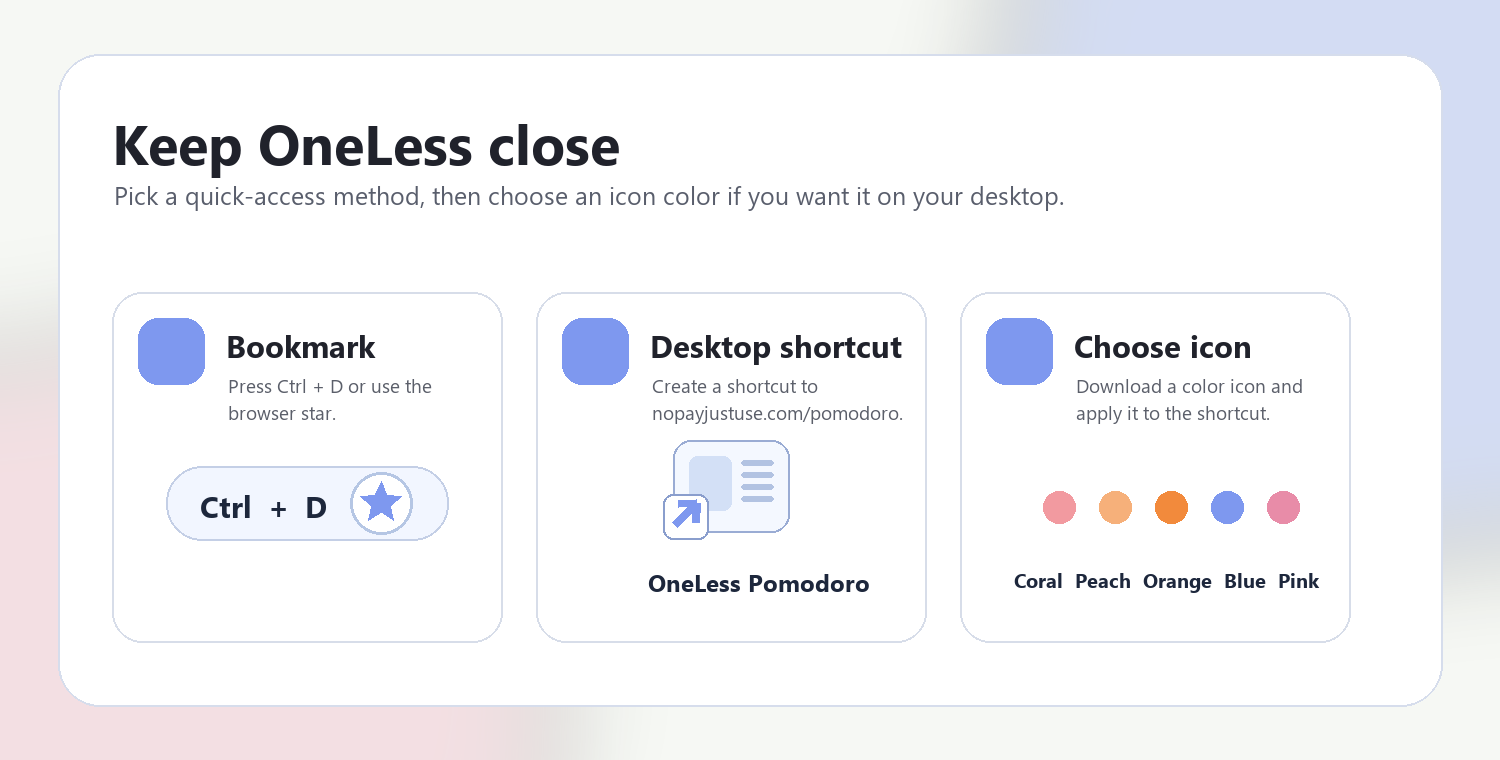
Press Ctrl + D on Windows or Command + D on Mac to bookmark this page. Your browser may also offer Create shortcut or Add to Home Screen.

Adding a OneLess desktop shortcut

A few useful details.

Does this change my original file?

No. The tool edits only the pasted copy in this page. Your original text stays in the left editor until you change or clear it.

Can I use regular expressions?

No. This view is designed for predictable literal matching. Characters such as *, [ and $ have no special search meaning.

Why are only some matches highlighted?

The match view highlights the first 500 eligible occurrences to keep the interface responsive. The result still includes every replacement unless first-match mode is enabled.

What are the size limits?

The source is limited to 500,000 characters, each search/replacement field to 10,000, and the resulting text to 1,000,000. A result that exceeds the limit cannot be copied.

How do I remove every occurrence of a word?

Enter the word in Find and leave Replace empty. Enable Whole word if you want to keep the same letters when they appear inside longer words. Check Result before copying.

How do I replace only the first match?

Enable first-match mode. The result changes the first eligible occurrence rather than every occurrence; case and whole-word settings still determine eligibility.

Does replacement text such as $1 refer to a captured group?

No. Search and replacement are literal text. There are no regular-expression capture groups, so $1 is inserted as written.

Keep the next step close.

Explore Text Tools ↗

Ready for your next draft?

Return to Find and Replace ↑