Quality is a tradeoff
Lower quality usually means fewer bytes and more visible changes. Fine text, edges, gradients, and repeated patterns can reveal compression artifacts sooner than broad areas of a photograph.

ONELESS · IMAGE LIGHT
A JPEG that looks good at a glance can still contain more data than the next task needs. Compress JPEG lets you make the tradeoff visible: adjust the quality, compare the original and result at the same position, and check the actual bytes before choosing which version to keep.
Open Compress JPEG · This tool needs JavaScript for image processing. The complete guide is available below.
UNDERSTAND THE RESULT
Lower quality usually means fewer bytes and more visible changes. Fine text, edges, gradients, and repeated patterns can reveal compression artifacts sooner than broad areas of a photograph.
Move the comparison divider to reveal the original on the left and the encoded result on the right. Use 100% view to inspect one image pixel per CSS pixel; scroll the image area to reach the edges.
A small or previously optimized JPEG may grow when it is encoded again. The tool reports that honestly. A percentage reduction is only shown when the new file is actually smaller.
HOW TO USE IT
EVERYDAY USES
A lighter photo can reduce the amount of image data visitors need to transfer. Check the result at the display size you intend to use.
Reduce a photo’s file size without changing its width and height. For a strict attachment limit, use the measured result size to decide whether another adjustment is necessary.
Try a moderate quality setting and compare the bytes. Re-encoding is optional; keeping the original can be the right outcome.
YOUR IMAGE, YOUR DEVICE
The selected image is read and processed in this browser. This tool does not upload the file to a server or save it in browser storage. Choosing another file or leaving the tool releases its working images. Downloaded copies remain wherever your browser saves them.
Every change starts from the original image in memory. Export creates a new raster file; original EXIF, camera information, and embedded profile metadata are not copied. Browser decoding and color management can affect the result, so keep your original for archival work.
This release handles one file at a time, up to 25 MB, 16 megapixels, and 16,384 pixels on either side. Animated images are rejected rather than flattened to one frame. Browser encoding support can vary. A failed export shows an error and never leaves an outdated result ready to download. Read the site privacy policy for the surrounding website.
File sizes and limits use decimal units: 1 KB = 1,000 bytes and 1 MB = 1,000,000 bytes. Rounded labels are for readability; target checks compare exact bytes.
KEEP IT NEARBY
Bookmark this page with Ctrl + D on Windows or Command + D on a Mac. To make a desktop shortcut, use your browser’s shortcut or Add to Home Screen option when available. The shortcut opens the tool page; it does not include your image or settings.
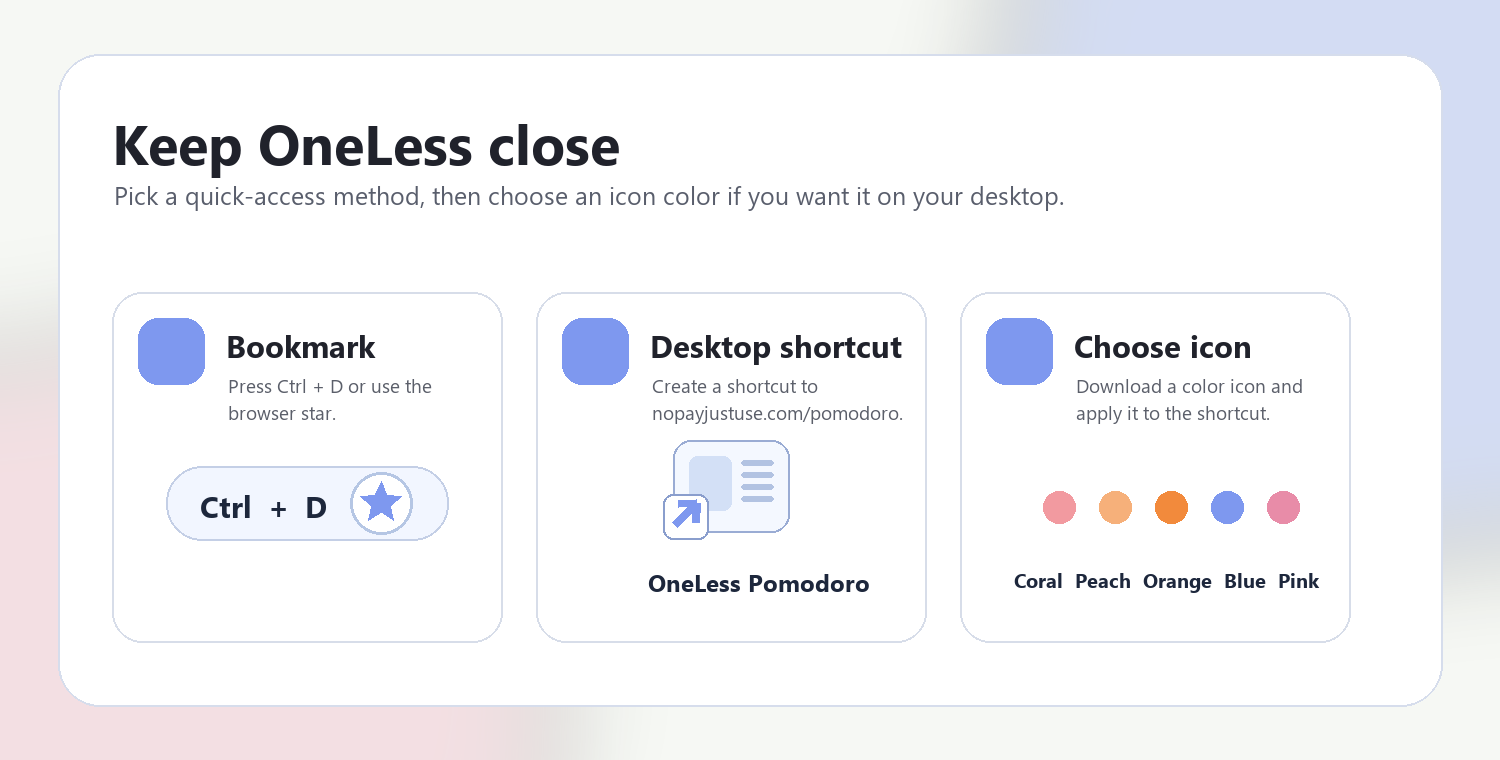
Download a PNG or ICO if your device lets you customize shortcut icons.
QUESTIONS, ANSWERED
No. The compression result keeps the orientation-adjusted width and height. Use Image Resizer when reducing the pixel dimensions would help.
No. JPEG encoding is lossy even at the highest setting. The slider is a browser encoder setting, not a guaranteed percentage of preserved visual information.
The original may already use more efficient encoding or stronger compression. Browser encoders also differ. This tool compares real file sizes and does not label a larger result as a saving.
This first tool adjusts quality and measures the output; it does not target a guaranteed KB size. The download remains available even when the result is larger, with a clear notice.
They are filename extensions for the same image format. Both are accepted when the file header is a valid JPEG.
Pixels are decoded and encoded into a new JPEG. Original metadata is not copied, and the browser manages color conversion. Keep the original for archival or color-critical work.
ANOTHER SMALL TASK?
Find a lighter JPEG with an original-to-result comparison you can actually inspect.
Return to Compress JPEG ↑ Soft Coral
 Warm Peach
 Sunset Orange
 OneLess Blue
 Rose Pink