Pixels describe the image
Width and height count the pixels in the picture. A 1200 × 800 image has the same dimensions whether a screen displays it large or small. Changing these numbers changes the exported image, not just the preview.

ONELESS · IMAGE LIGHT
An image can be the right subject and still be the wrong size. Image Resizer gives you a direct way to prepare a picture for a page, a document, a message, or an upload field. Start with the original, decide how many pixels you need, and inspect a separate result before saving it.
Open Image Resizer · This tool needs JavaScript for image processing. The complete guide is available below.
UNDERSTAND THE RESULT
Width and height count the pixels in the picture. A 1200 × 800 image has the same dimensions whether a screen displays it large or small. Changing these numbers changes the exported image, not just the preview.
With Keep proportions enabled, editing one side calculates the other from the original ratio. A whole-pixel rounding difference is normal. Turn it off only when you intentionally want a wider or taller result.
Pixel dimensions and file size are different. Reducing the dimensions often reduces the bytes, but the output format, image content, and JPEG or WebP quality also affect the file you download.
HOW TO USE IT
EVERYDAY USES
Set a width that matches the space the image will occupy. Avoid sending a huge original when a smaller image does the same job.
Use the same width or height for successive images while preserving each picture’s proportions. This version processes one file at a time.
Enter the dimensions requested by the destination. If the required shape differs from your picture, crop it first instead of stretching the subject.
YOUR IMAGE, YOUR DEVICE
The selected image is read and processed in this browser. This tool does not upload the file to a server or save it in browser storage. Choosing another file or leaving the tool releases its working images. Downloaded copies remain wherever your browser saves them.
Every change starts from the original image in memory. Export creates a new raster file; original EXIF, camera information, and embedded profile metadata are not copied. Browser decoding and color management can affect the result, so keep your original for archival work.
This release handles one file at a time, up to 25 MB, 16 megapixels, and 16,384 pixels on either side. Animated images are rejected rather than flattened to one frame. Browser encoding support can vary. A failed export shows an error and never leaves an outdated result ready to download. Read the site privacy policy for the surrounding website.
File sizes and limits use decimal units: 1 KB = 1,000 bytes and 1 MB = 1,000,000 bytes. Rounded labels are for readability; target checks compare exact bytes.
KEEP IT NEARBY
Bookmark this page with Ctrl + D on Windows or Command + D on a Mac. To make a desktop shortcut, use your browser’s shortcut or Add to Home Screen option when available. The shortcut opens the tool page; it does not include your image or settings.
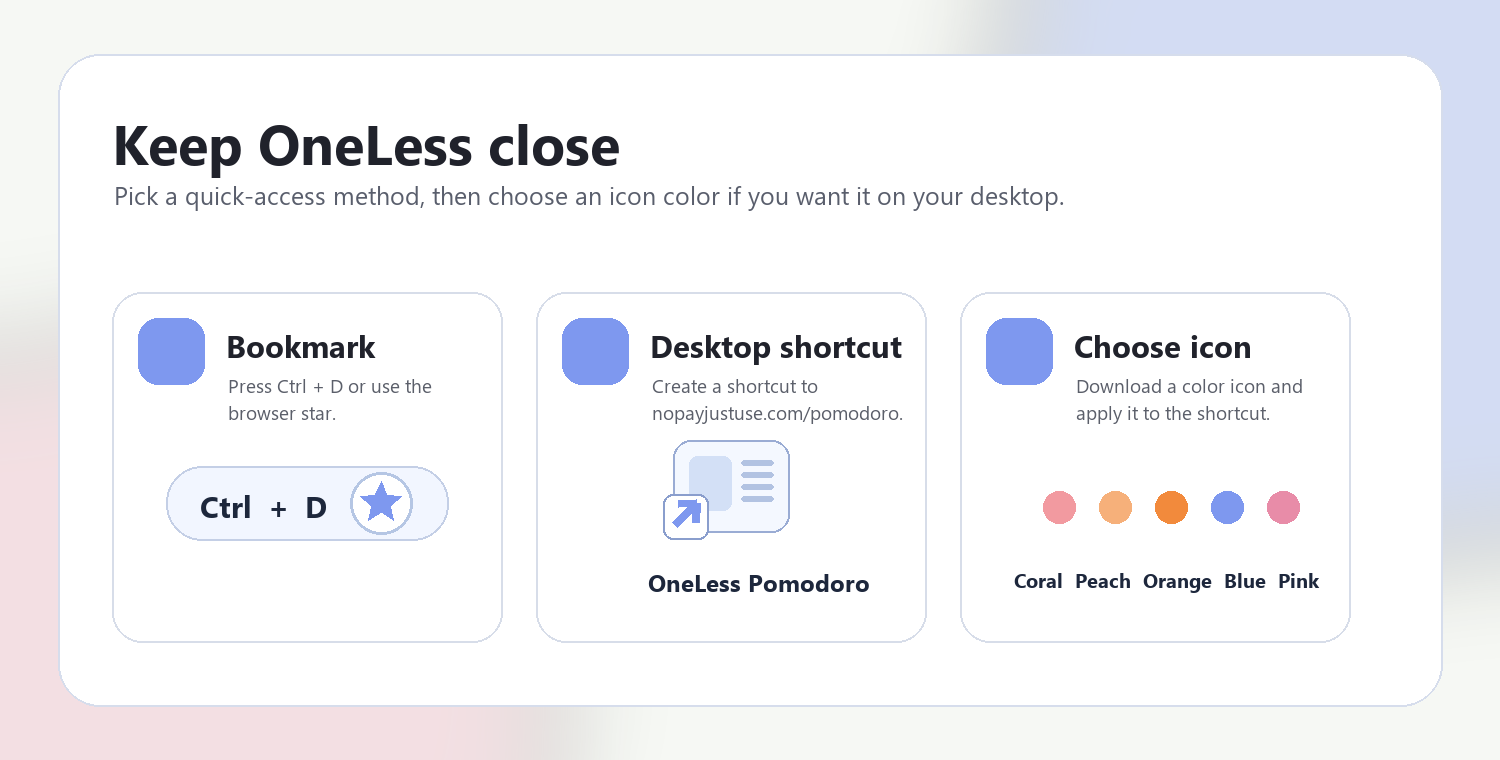
Download a PNG or ICO if your device lets you customize shortcut icons.
QUESTIONS, ANSWERED
No. Upscaling creates additional pixels from the existing image; it cannot recover detail the original never captured. The tool shows an upscaling notice when either output side is larger.
Yes. Enter a scale percentage or use 25%, 50%, or 75%. Percentages always refer to the original dimensions, so repeated changes do not compound.
PNG keeps transparent pixels and is lossless after resizing. JPEG is suitable for opaque photographs. WebP can preserve transparency and usually offers compact files, but its availability depends on the browser encoder.
No. This tool controls pixel dimensions and encoding quality. It reports the actual output size but does not promise a particular KB limit.
The browser creates a new raster image. EXIF fields, camera details, and original color-profile metadata are not copied by this tool. Keep the original if those details matter.
Keep proportions on and enter either width or height. The other dimension is calculated from the original proportions. Turning it off allows a different shape and can stretch the subject.
Choose Pixel art to use nearest-neighbor sampling and preserve hard pixel boundaries. Smooth blends neighboring pixels and is usually more suitable for photographs.
ANOTHER SMALL TASK?
Set the pixel size, keep the proportions, and see the result before you save.
Return to Image Resizer ↑ Soft Coral
 Warm Peach
 Sunset Orange
 OneLess Blue
 Rose Pink