An image file prepared to fit a target size in kilobytes.

ONELESS · IMAGE LIGHT

Resize Image to KB

An upload limit is a byte limit, not a width or a quality score. Resize Image to KB starts with the picture in front of you and tests real encoded files against the limit you enter. It tries quality settings first, then smaller dimensions if you allow them. The result tells you what fit, what changed, and whether the limit is still out of reach. Your original remains available on your device.

Open Resize Image to KB · This tool needs JavaScript for image processing. The complete guide is available below.

UNDERSTAND THE RESULT

A little context before the next click.

A ceiling, not an exact size

A 100 KB target means at most 100,000 bytes here. A 94 KB result satisfies that limit; adding unnecessary bytes to reach exactly 100 KB would not help. Some services use 1,024 bytes per KB. The exact byte count is shown so you can compare the destination’s rule.

Quality before dimensions

JPEG and WebP are tested between your minimum quality and 92. If those settings cannot meet the target, the tool reduces both dimensions proportionally only when Allow smaller dimensions is checked. PNG has no lossy quality setting, so fitting it may require smaller dimensions.

Measured, bounded attempts

The tool tests a limited set of candidates from the original pixels and reports the actual file size. It does not promise the mathematically highest quality or largest possible dimensions. A result above the target is clearly marked, even though you can still download that best tested smaller file.

HOW TO USE IT

From an original to a clear next step.

  1. Choose a still JPEG, PNG, or WebP. Use Sample to try the workflow before selecting your own picture.
  2. Enter the limit in decimal KB, from 1 to 25,000, or select 50, 100, or 200 KB. Choose the format accepted by your destination.
  3. Set a minimum JPEG/WebP quality and decide whether dimensions may shrink. Watch the candidate status; Stop cancels the search and disables outdated downloads.
  4. Read Within your limit or Target not reached, the exact bytes, dimensions, and tested quality. Compare Original and Result, then download only if both the size and appearance work for you.

EVERYDAY USES

Small image tasks, with room to see.

An application form

Prepare a photograph for a byte limit, then check the required width and height as well. A file can fit the byte limit while being too small for the form’s separate dimension rule.

A transparent asset

Choose PNG or WebP when the picture needs transparent edges. JPEG fills those areas with white. A very small target may make a logo unreadable, even when the file technically fits.

A document attachment

Reduce a large scan or illustration for a message or document. Inspect small writing at 100% before saving. Preserving readable content is more useful than chasing the lowest possible number.

YOUR IMAGE, YOUR DEVICE

Local processing. A separate result.

The selected image is read and processed in this browser. This tool does not upload the file to a server or save it in browser storage. Choosing another file or leaving the tool releases its working images. Downloaded copies remain wherever your browser saves them.

Every change starts from the original image in memory. Export creates a new raster file; original EXIF, camera information, and embedded profile metadata are not copied. Browser decoding and color management can affect the result, so keep your original for archival work.

This release handles one file at a time, up to 25 MB, 16 megapixels, and 16,384 pixels on either side. Animated images are rejected rather than flattened to one frame. Browser encoding support can vary. A failed export shows an error and never leaves an outdated result ready to download. Read the site privacy policy for the surrounding website.

File sizes and limits use decimal units: 1 KB = 1,000 bytes and 1 MB = 1,000,000 bytes. Rounded labels are for readability; target checks compare exact bytes.

KEEP IT NEARBY

One less search next time.

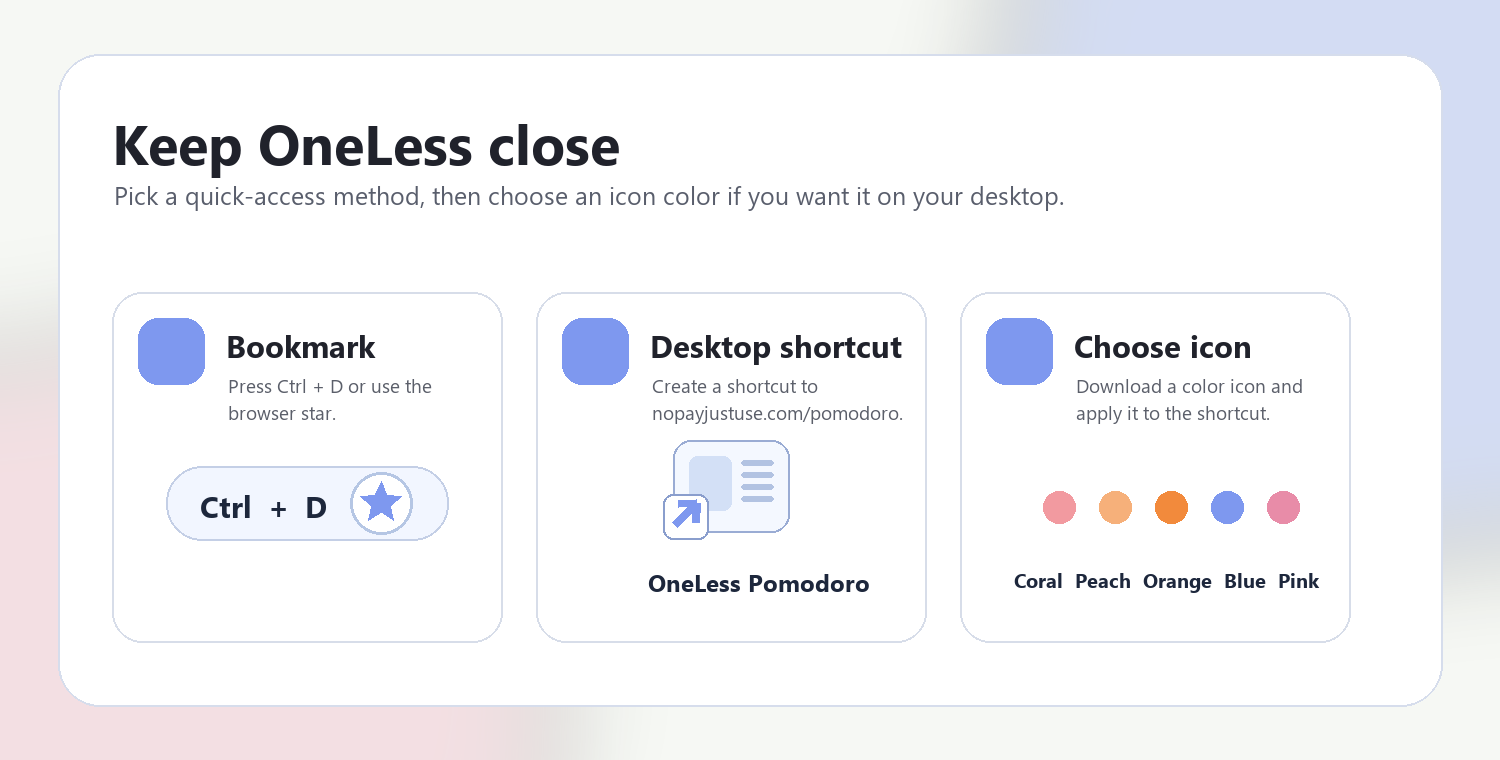
Bookmark this page with Ctrl + D on Windows or Command + D on a Mac. To make a desktop shortcut, use your browser’s shortcut or Add to Home Screen option when available. The shortcut opens the tool page; it does not include your image or settings.

Guide to adding a OneLess browser shortcut

Choose a OneLess shortcut icon

Download a PNG or ICO if your device lets you customize shortcut icons.

QUESTIONS, ANSWERED

Before you save or share.

Why did the result not reach the limit?

Your minimum quality, locked dimensions, image complexity, or the bounded search may prevent a fit. Allow smaller dimensions, lower the minimum quality, choose another accepted format, or increase the target. An over-limit result is never labelled as success.

Can I keep the dimensions exactly?

Uncheck Allow smaller dimensions. The search will adjust JPEG/WebP quality only. PNG may remain over the target because its pixel encoding is lossless.

Does this pad a file to an exact KB count?

No. The target is an upper bound. The tool does not add padding or promise an exact rounded file size.

What happens to transparency?

PNG and WebP preserve alpha in the chosen output. Resizing can change edge samples. JPEG has no alpha and uses white behind transparent areas.

Why is the quality not 100?

The automatic search starts at 92 and respects the minimum you selected. This is a practical range for size fitting, not a percentage of visual accuracy. Use the dedicated converter or compressor for manual quality control.

Can I stop or change the search?

Yes. Stop disables the pending result, and changing a setting starts a fresh search. Replacing or clearing the source cancels its work. A stale candidate cannot replace the result for your latest settings.

ANOTHER SMALL TASK?

Keep the next step close.

Ready for the image in front of you?

Set a size limit. See which quality and dimensions can fit it.

Return to Resize Image to KB ↑