A real WebP file
The tool decodes the PNG and encodes a WebP. It checks the resulting MIME type, header, and dimensions before enabling Download. Renaming the source extension would not produce this result.

ONELESS · IMAGE LIGHT
PNG to WebP creates a new WebP file for a page, document, or application that accepts it. Switch between Original and Result in the large preview to judge the change before saving. Transparent PNG graphics keep their alpha channel instead of being flattened onto a background. The quality control affects color detail, so lettering and soft edges deserve a close look. Both file sizes are measured after encoding.
Open PNG to WebP · This tool needs JavaScript for image processing. The complete guide is available below.
UNDERSTAND THE RESULT
The tool decodes the PNG and encodes a WebP. It checks the resulting MIME type, header, and dimensions before enabling Download. Renaming the source extension would not produce this result.
The slider ranges from 10 to 100. Higher values tend to retain more detail and use more bytes, but 100 is not a lossless mode. This browser-based converter does not offer a separate lossless WebP encoder or claim a guaranteed quality percentage.
The WebP retains the source alpha channel. The checkerboard shows where the image is transparent; it is not saved into the output. No background color is added, but lossy encoding can change RGB detail near edges.
HOW TO USE IT
EVERYDAY USES
Prepare a logo or illustration for a WebP-capable page without baking in a background. Test the resulting image against the backgrounds where it will appear.
Create a genuine WebP file rather than renaming an extension. Check the destination’s separate dimensions, byte limit, and animation requirements before uploading.
PNG may remain the better choice for small text, line art, or images that require exact decoded pixels. The visible comparison lets you decide whether the WebP tradeoff is worthwhile.
YOUR IMAGE, YOUR DEVICE
The selected image is read and processed in this browser. This tool does not upload the file to a server or save it in browser storage. Choosing another file or leaving the tool releases its working images. Downloaded copies remain wherever your browser saves them.
Every change starts from the original image in memory. Export creates a new raster file; original EXIF, camera information, and embedded profile metadata are not copied. Browser decoding and color management can affect the result, so keep your original for archival work.
This release handles one file at a time, up to 25 MB, 16 megapixels, and 16,384 pixels on either side. Animated images are rejected rather than flattened to one frame. Browser encoding support can vary. A failed export shows an error and never leaves an outdated result ready to download. Read the site privacy policy for the surrounding website.
File sizes and limits use decimal units: 1 KB = 1,000 bytes and 1 MB = 1,000,000 bytes. Rounded labels are for readability; target checks compare exact bytes.
KEEP IT NEARBY
Bookmark this page with Ctrl + D on Windows or Command + D on a Mac. To make a desktop shortcut, use your browser’s shortcut or Add to Home Screen option when available. The shortcut opens the tool page; it does not include your image or settings.
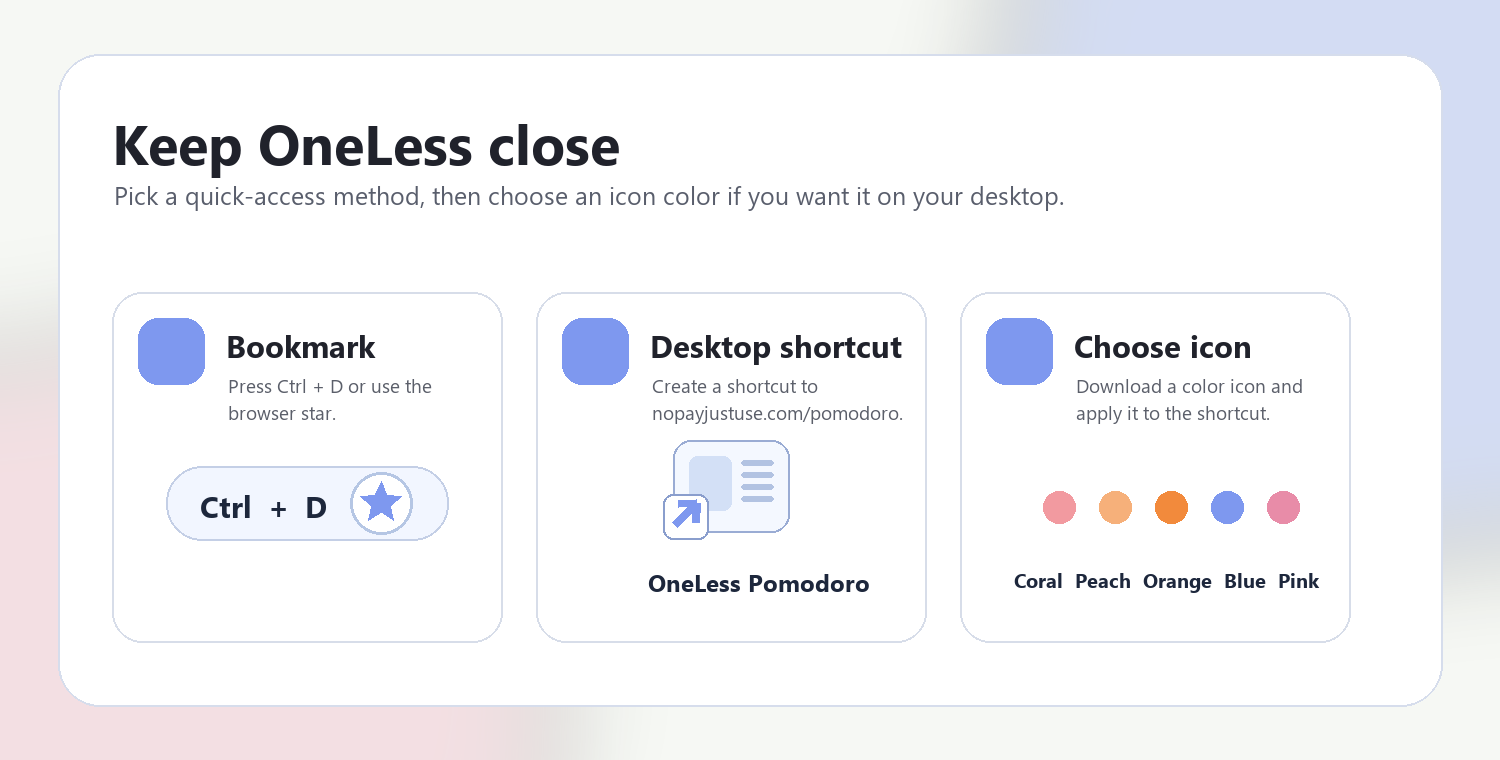
Download a PNG or ICO if your device lets you customize shortcut icons.
QUESTIONS, ANSWERED
No. This converter uses the browser’s lossy WebP quality control. Quality 100 is not labelled or guaranteed as lossless.
No. Some PNG files are already compact. The actual result can be larger; both sizes are shown so you can keep the original when conversion offers no useful benefit.
No. It preserves the displayed, orientation-adjusted width and height. Use Image Resizer for a different pixel size or Resize Image to KB for a byte ceiling.
Existing alpha remains in the WebP. The converter does not add a background, remove opaque areas, or infer an object mask.
No. Format conversion and a higher quality setting cannot restore detail absent from the source, repair blur, or increase real resolution.
The output format is checked. If the browser returns a different format or fails to encode, the tool shows an error instead of downloading a mislabeled file. Animated PNG is rejected; original metadata is not copied.
ANOTHER SMALL TASK?
Keep transparent edges while choosing a lighter WebP copy.
Return to PNG to WebP ↑ Soft Coral
 Warm Peach
 Sunset Orange
 OneLess Blue
 Rose Pink