Image Compressor: Matching photographs with smaller file-size labels.

ONELESS · IMAGE LIGHT

Image Compressor

When a folder contains a mixture of photographs, screenshots, and transparent graphics, the first useful step is often simply to make one image lighter. Image Compressor accepts JPEG, PNG, and still WebP, recognizes the actual format, and keeps that format in the result. The controls adapt to the picture: JPEG and WebP use a quality setting, while PNG uses lossless pixel encoding. The comparison and byte counts stay in the same places.

Open Image Compressor · This tool needs JavaScript for image processing. The complete guide is available below.

UNDERSTAND THE RESULT

A little context before the next click.

The original format stays

A JPEG remains JPEG, a PNG remains PNG, and a WebP remains WebP. This compressor does not silently convert a transparent image to an opaque format or change its extension to make it appear smaller. Use a dedicated converter when you want to change formats.

Different formats need different controls

JPEG and WebP quality trades detail for storage through the browser encoder. PNG uses adaptive filtering and DEFLATE without a quality slider or palette reduction. Its decoded 8-bit pixels and alpha are preserved in the new encoding.

A useful saving is visible

Original and Result bars show actual file sizes after encoding. The preview divider lets you compare corresponding details at the same dimensions. When the result is larger, the interface says so and leaves Download original available.

HOW TO USE IT

From an original to a clear next step.

  1. Choose or drop a still JPEG, PNG, or WebP image. The file header determines its format, rather than just its extension.
  2. For JPEG or WebP, adjust Quality. For PNG, wait for automatic lossless pixel optimization; the format card explains why no quality control appears.
  3. Move the original/result divider and inspect fine detail at 100%. Check the actual reduction in bytes and whether the displayed dimensions are unchanged.
  4. Download the separate compressed copy when it suits your task. Keep or download the original if it is smaller or visually preferable, then clear or replace the image for the next task.

EVERYDAY USES

Small image tasks, with room to see.

A mixed collection of assets

Use one workspace for individual files from different formats. This release processes one image at a time; it does not silently promise a batch download or combine results.

A photograph for a page

Reduce JPEG or WebP quality gradually while watching texture and lettering. A quality setting is not a guaranteed percentage of retained visual information.

A transparent diagram

Let a PNG use its own lossless path. It retains alpha and dimensions, while the size comparison makes clear whether optimization actually helped this particular image.

YOUR IMAGE, YOUR DEVICE

Local processing. A separate result.

The selected image is read and processed in this browser. This tool does not upload the file to a server or save it in browser storage. Choosing another file or leaving the tool releases its working images. Downloaded copies remain wherever your browser saves them.

Every change starts from the original image in memory. Export creates a new raster file; original EXIF, camera information, and embedded profile metadata are not copied. Browser decoding and color management can affect the result, so keep your original for archival work.

This release handles one file at a time, up to 25 MB, 16 megapixels, and 16,384 pixels on either side. Animated images are rejected rather than flattened to one frame. Browser encoding support can vary. A failed export shows an error and never leaves an outdated result ready to download. Read the site privacy policy for the surrounding website.

File sizes and limits use decimal units: 1 KB = 1,000 bytes and 1 MB = 1,000,000 bytes. Rounded labels are for readability; target checks compare exact bytes.

KEEP IT NEARBY

One less search next time.

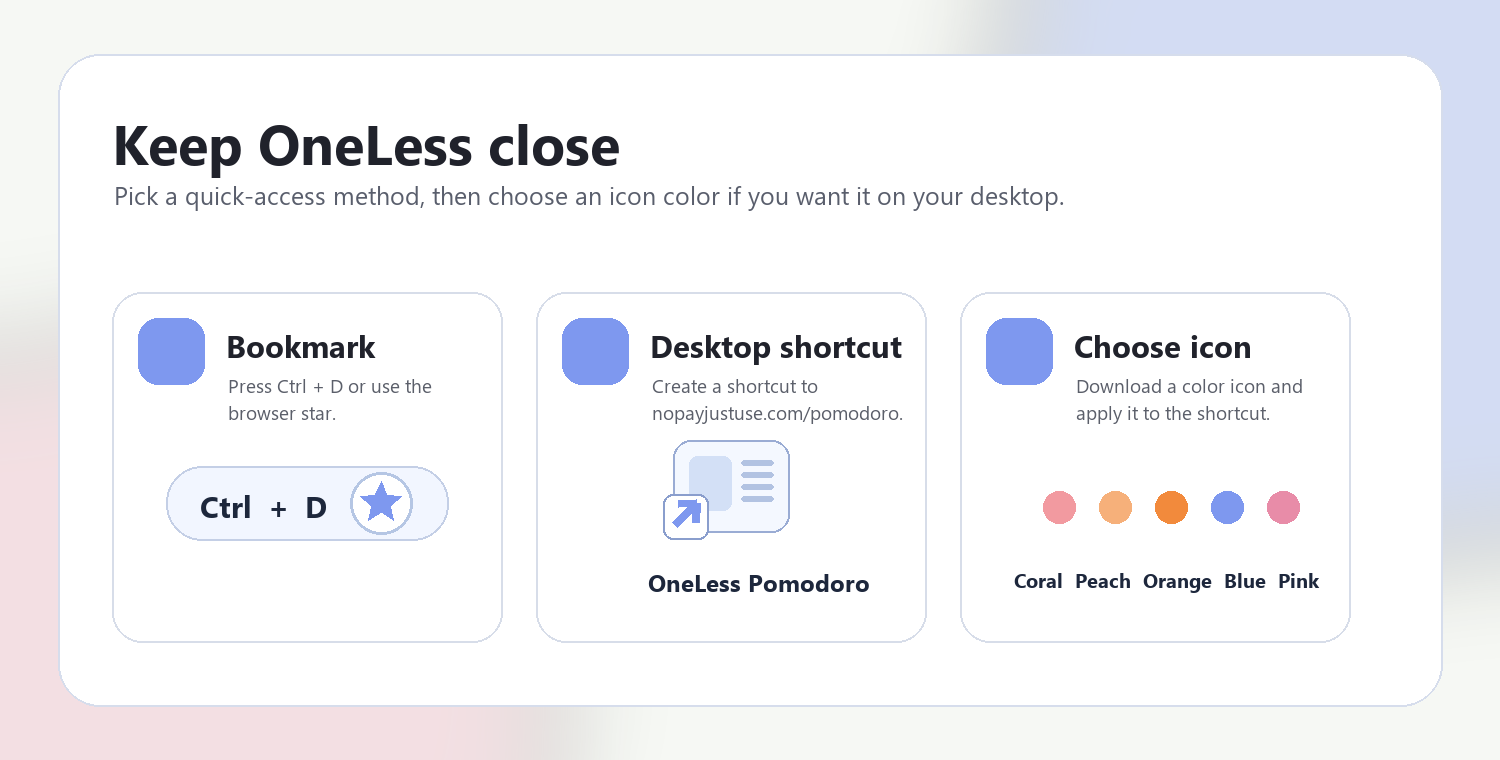
Bookmark this page with Ctrl + D on Windows or Command + D on a Mac. To make a desktop shortcut, use your browser’s shortcut or Add to Home Screen option when available. The shortcut opens the tool page; it does not include your image or settings.

Guide to adding a OneLess browser shortcut

Choose a OneLess shortcut icon

Download a PNG or ICO if your device lets you customize shortcut icons.

QUESTIONS, ANSWERED

Before you save or share.

How is this different from Compress JPEG or Compress PNG?

Those tools accept one known format and explain its specific options. This tool detects any of the three supported formats and selects the corresponding controls and encoding path in one workspace.

Does compression resize my image?

No. Displayed dimensions are preserved. Use Resize Image to KB when smaller dimensions are acceptable for meeting a byte limit.

Is quality 100 lossless?

The browser quality setting is not a lossless guarantee for JPEG or WebP. PNG uses lossless encoding of decoded pixels, with no quality control.

What happens to transparent pixels?

PNG and WebP results preserve transparency. JPEG sources are opaque. This format-preserving workflow does not add a white background to a transparent source.

Will every image become smaller?

No. Already optimized images may grow when encoded again. The tool reports a larger result accurately and offers the original file as an alternative.

Can I process animated WebP or PNG?

Animated files are rejected, because this editor creates still raster images. Original metadata is not copied into the new output, and browser decoding and color management apply.

ANOTHER SMALL TASK?

Keep the next step close.

Ready for the image in front of you?

Make a lighter copy in the same format, and compare what changes.

Return to Image Compressor ↑