A real format conversion
The tool reads a WebP file, decodes its pixels, and encodes a new JPEG file. It checks the output header and dimensions before enabling Download. Changing a filename extension alone would not perform this conversion.

ONELESS · IMAGE LIGHT
WebP to JPG prepares a compatible copy when the next application, document, or upload form needs a different image format. Original and Result share a large preview, with both actual file sizes shown in the settings panel. JPEG offers broad compatibility for opaque pictures. Choose how transparent areas are filled, then balance visual detail against file size before saving.
Open WebP to JPG · This tool needs JavaScript for image processing. The complete guide is available below.
UNDERSTAND THE RESULT
The tool reads a WebP file, decodes its pixels, and encodes a new JPEG file. It checks the output header and dimensions before enabling Download. Changing a filename extension alone would not perform this conversion.
The result uses the same displayed width and height as the decoded source. There is no hidden resizing, cropping, or upscaling. Use Image Resizer separately when the destination also requires a different pixel size.
WebP may contain transparent pixels, but JPEG cannot. White, dark, warm, and custom background colors are composited behind those pixels. Opaque areas are unaffected by the selected background color.
HOW TO USE IT
EVERYDAY USES
When a service accepts JPEG but not your WebP, create a genuine compatible file. Check the service’s pixel and byte limits separately; format conversion alone does not guarantee they will be met.
Choose a background that matches a slide or page. The chosen color is baked into the JPEG, so use PNG instead when the image must sit on several different backgrounds.
Look at the actual WebP and JPEG sizes instead of assuming one format is always smaller. Image content, source compression, and the browser encoder all influence the result.
YOUR IMAGE, YOUR DEVICE
The selected image is read and processed in this browser. This tool does not upload the file to a server or save it in browser storage. Choosing another file or leaving the tool releases its working images. Downloaded copies remain wherever your browser saves them.
Every change starts from the original image in memory. Export creates a new raster file; original EXIF, camera information, and embedded profile metadata are not copied. Browser decoding and color management can affect the result, so keep your original for archival work.
This release handles one file at a time, up to 25 MB, 16 megapixels, and 16,384 pixels on either side. Animated images are rejected rather than flattened to one frame. Browser encoding support can vary. A failed export shows an error and never leaves an outdated result ready to download. Read the site privacy policy for the surrounding website.
File sizes and limits use decimal units: 1 KB = 1,000 bytes and 1 MB = 1,000,000 bytes. Rounded labels are for readability; target checks compare exact bytes.
KEEP IT NEARBY
Bookmark this page with Ctrl + D on Windows or Command + D on a Mac. To make a desktop shortcut, use your browser’s shortcut or Add to Home Screen option when available. The shortcut opens the tool page; it does not include your image or settings.
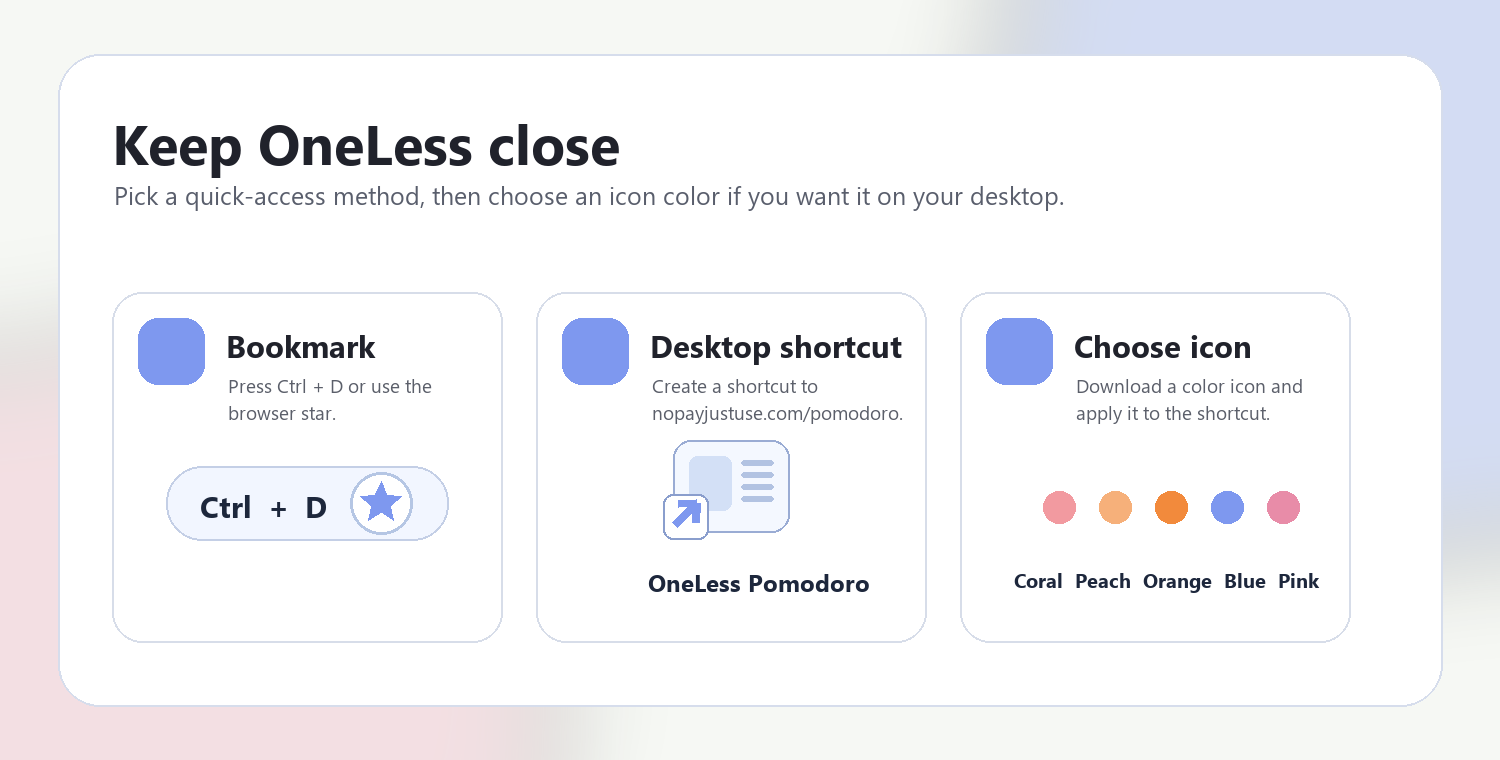
Download a PNG or ICO if your device lets you customize shortcut icons.
QUESTIONS, ANSWERED
No. Conversion changes the format. It cannot recover detail already lost in the original, increase real resolution, or repair blur automatically.
No. JPEG is opaque. Transparent source areas are filled with the chosen background before encoding.
It controls the browser JPEG encoder from 10 to 100. Higher values tend to retain more detail and use more bytes, but even 100 is not a promise of lossless output.
Not necessarily. A compressed source can become a larger output, especially when converted to PNG. Both actual file sizes are shown before you decide to download.
Animated WebP is detected and rejected. Saving only one frame would silently discard the animation, so this converter accepts still WebP images only.
The browser decodes the pixels and manages color conversion. Original EXIF, embedded profile metadata, and camera fields are not copied into the new raster. Keep the original for archival or color-critical work.
ANOTHER SMALL TASK?
Make a compatible JPEG from WebP and choose how transparent areas are filled.
Return to WebP to JPG ↑ Soft Coral
 Warm Peach
 Sunset Orange
 OneLess Blue
 Rose Pink