Frames comparing 16:9, 4:3 and 1:1 aspect ratios.

ONELESS · IMAGE LIGHT

Aspect Ratio Calculator

Sometimes you know the shape you need before you have an image. Aspect Ratio Calculator turns a reference pair into a reduced ratio, then calculates the missing side of a new size. Start with familiar proportions such as 16:9, enter original dimensions such as 1920 × 1080, or use a decimal reference. A changing diagram makes the shape visible while the numeric result keeps the calculation precise.

Open Aspect Ratio Calculator · This tool needs JavaScript for image processing. The complete guide is available below.

UNDERSTAND THE RESULT

A little context before the next click.

A proportion is not a resolution

1920 × 1080 and 1280 × 720 both reduce to 16:9. The ratio describes the relationship between width and height, while dimensions describe a particular pixel grid. Matching the ratio avoids stretching, but it does not guarantee enough detail for a large display.

One known side determines the other

For a known width, height equals width multiplied by reference height and divided by reference width. For a known height, the formula is reversed. The tool shows the formula next to the controls so you can check what was calculated.

Pixels need whole numbers

A proportional calculation can produce a fraction of a pixel. The result rounds the missing side to the nearest whole pixel and shows the unrounded value when rounding was needed. A one-pixel difference can slightly change the resulting ratio; it is not silently presented as an exact match.

HOW TO USE IT

From an original to a clear next step.

  1. Enter a reference width and height. These can be ratio values or original dimensions; both fields must be positive and use the same unit.
  2. Choose a preset for a common shape, or Swap to reverse the reference width and height for a portrait or landscape layout.
  3. Select whether the target width or height is known, then enter that side in whole pixels. The paired side updates immediately.
  4. Read the reduced ratio, output dimensions, and rounding note. Copy dimensions for a brief or enter the result in Image Resizer; the calculator itself does not edit an image.

EVERYDAY USES

Small image tasks, with room to see.

Plan a cover image

Calculate a matching height from the width available in a page layout. Check whether the subject will need cropping when the original has a different shape.

Compare portrait and landscape

Swap a 16:9 reference to 9:16 and see how the diagram changes. The known dimension remains the value you entered.

Prepare a consistent set of assets

Use one reference ratio for several sizes. Copy the numeric result into your design notes and preserve the original source for later exports.

YOUR IMAGE, YOUR DEVICE

Local processing. A separate result.

Files, code, and calculation values are processed in this browser and are not uploaded by the tool or saved in browser storage. Clear removes the working result. Leaving the page releases its temporary image URLs. Copies you put on the clipboard or download remain under your control. Share copies the tool address without your input.

This calculator operates on numeric values only. No image is selected, decoded, or changed. Copied text contains the calculated dimensions and reference ratio, so it can be checked before being pasted into a document or another tool.

Reference values must be positive, at most 1,000,000, and have at most six decimal places. The known side and rounded result must be whole pixels from 1 to 1,000,000. These calculation limits do not imply that another image editor can export a canvas of the resulting size.

Read the site privacy policy for the surrounding website.

File sizes and limits use decimal units: 1 KB = 1,000 bytes and 1 MB = 1,000,000 bytes. Rounded labels are for readability; target checks compare exact bytes.

KEEP IT NEARBY

One less search next time.

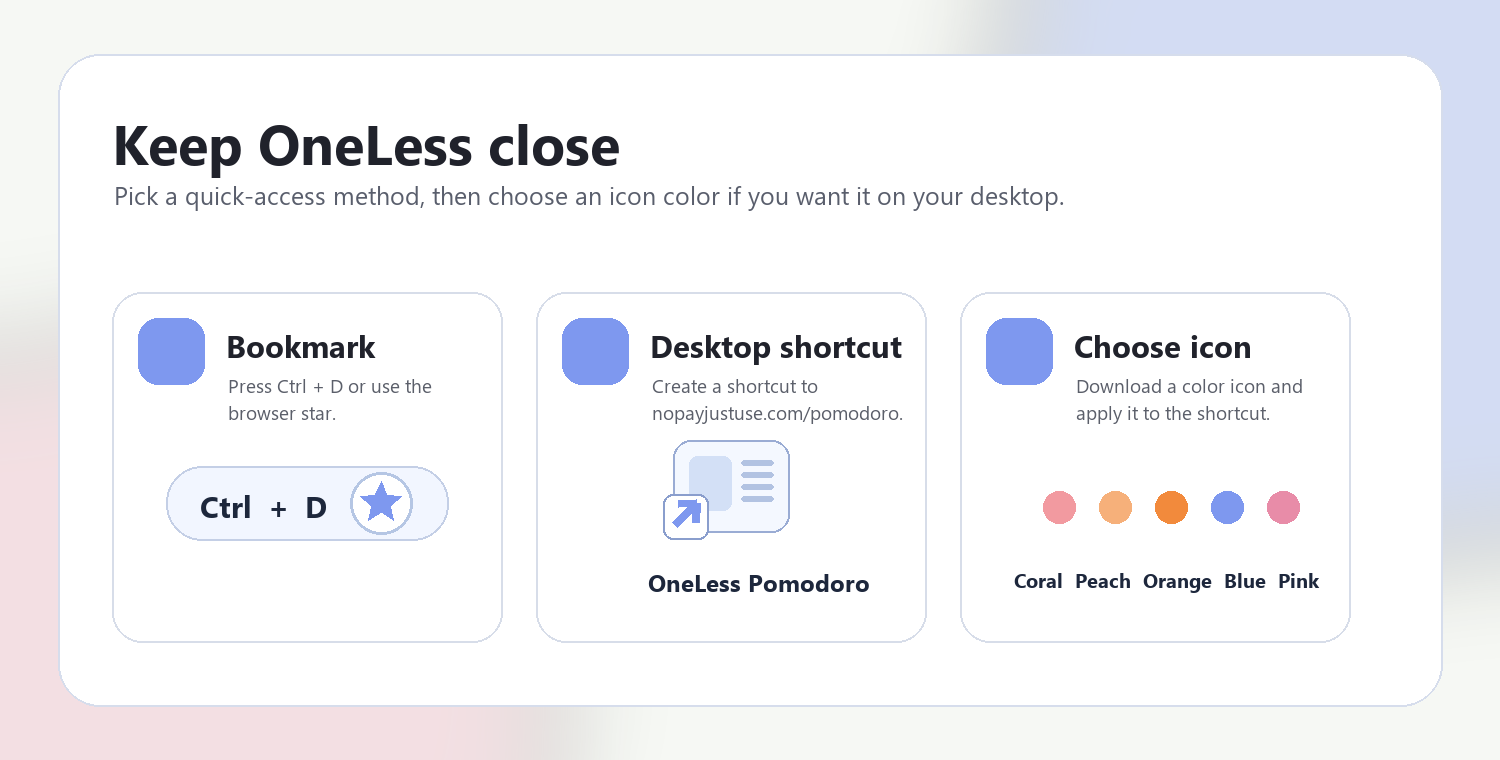
Bookmark this page with Ctrl + D on Windows or Command + D on a Mac. To make a desktop shortcut, use your browser’s shortcut or Add to Home Screen option when available. The shortcut opens the tool page; it does not include your image or settings.

Guide to adding a OneLess browser shortcut

Choose a OneLess shortcut icon

Download a PNG or ICO if your device lets you customize shortcut icons.

QUESTIONS, ANSWERED

Before you save or share.

Do I need to upload an image?

No. This calculator works entirely from numbers. Image Dimensions Checker can tell you an existing image’s measurements when needed.

Can I use decimals?

Reference values support up to six decimal places and must be no greater than 1,000,000. The known output side must be a whole number from 1 to 1,000,000.

Does the diagram show actual pixels?

No. It scales the proportion into the available space. Very extreme ratios use a minimum visible diagram size; rely on the numeric result in that case.

Will this resize or crop my picture?

No. It calculates measurements. Use Image Resizer for scaling and Crop Image when the subject needs a different frame.

Why are invalid values not calculated?

Zero, negative values, excessive precision, and unsupported ranges do not define a supported result. Copy is disabled until the values are valid again.

Can I use physical measurements?

The reference pair may use any consistent unit because the ratio is unitless. The output fields here are explicitly whole pixels, not inches, centimeters, or print-resolution recommendations.

ANOTHER SMALL TASK?

Keep the next step close.

Ready for the image in front of you?

Find the shape. Set one side. Let the other fall into place.

Return to Aspect Ratio Calculator ↑