The frame selects pixels
Everything inside the crop rectangle is included; everything outside is left out of the downloaded copy. The original remains available throughout the session.

ONELESS · IMAGE LIGHT
Cropping is a choice about what stays in the frame. Crop Image keeps the photograph or illustration as the working surface: move the selection, pull an edge, choose a familiar proportion, or enter exact coordinates. A separate result lets you inspect what will be saved before committing to the frame.
Open Crop Image · This tool needs JavaScript for image processing. The complete guide is available below.
UNDERSTAND THE RESULT
Everything inside the crop rectangle is included; everything outside is left out of the downloaded copy. The original remains available throughout the session.
A 1:1 selection is square whether it contains 200 × 200 or 1200 × 1200 pixels. Ratio presets constrain the shape; the width and height fields describe the actual selected pixels.
X is the number of pixels from the left edge and Y is the distance from the top. The selection is kept inside the original image, including when you type values directly.
HOW TO USE IT
EVERYDAY USES
Choose 1:1 and move the selection until the subject has enough space around it. The output is square without stretching the face.
Use the exact coordinate fields to remove a known number of pixels from an edge of a screenshot or scan.
Choose 16:9 or a custom ratio, then position the frame around the important details. The crop preserves the original pixels without automatic enlargement.
YOUR IMAGE, YOUR DEVICE
The selected image is read and processed in this browser. This tool does not upload the file to a server or save it in browser storage. Choosing another file or leaving the tool releases its working images. Downloaded copies remain wherever your browser saves them.
Every change starts from the original image in memory. Export creates a new raster file; original EXIF, camera information, and embedded profile metadata are not copied. Browser decoding and color management can affect the result, so keep your original for archival work.
This release handles one file at a time, up to 25 MB, 16 megapixels, and 16,384 pixels on either side. Animated images are rejected rather than flattened to one frame. Browser encoding support can vary. A failed export shows an error and never leaves an outdated result ready to download. Read the site privacy policy for the surrounding website.
File sizes and limits use decimal units: 1 KB = 1,000 bytes and 1 MB = 1,000,000 bytes. Rounded labels are for readability; target checks compare exact bytes.
KEEP IT NEARBY
Bookmark this page with Ctrl + D on Windows or Command + D on a Mac. To make a desktop shortcut, use your browser’s shortcut or Add to Home Screen option when available. The shortcut opens the tool page; it does not include your image or settings.
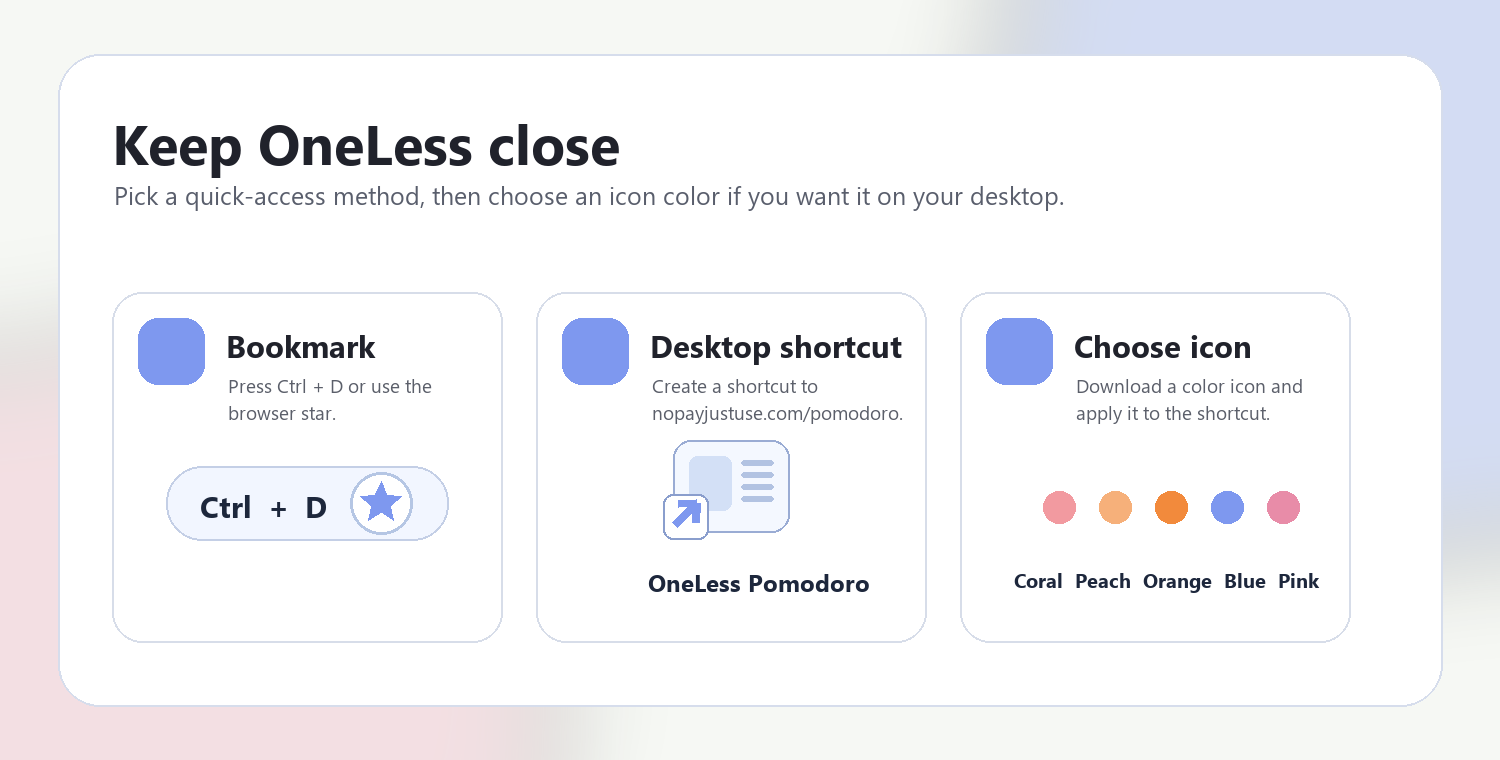
Download a PNG or ICO if your device lets you customize shortcut icons.
QUESTIONS, ANSWERED
Cropping selects a region without scaling it. Saving as JPEG or lossy WebP can introduce compression changes; PNG preserves the selected pixels after the browser has decoded the source.
Reset returns the full original frame. All new selections use the original source, so repeated changes do not successively crop an already cropped result.
The frame cannot extend beyond the image. Coordinates and sizes are bounded to the image, and ratio-locked dimensions are rounded to whole pixels.
Yes. Tab to the crop frame and use arrows to move it. Each edge and corner handle is also focusable; arrows resize it. Hold Shift for ten-pixel steps. Exact numeric fields provide another option.
No. Zoom changes the working view only. The coordinate fields and result dimensions always refer to the original image pixels.
This editor accepts still images. Animated PNG and WebP are rejected so that frames are not silently lost.
ANOTHER SMALL TASK?
Frame what matters. Move the edges, choose a ratio, or enter an exact crop.
Return to Crop Image ↑ Soft Coral
 Warm Peach
 Sunset Orange
 OneLess Blue
 Rose Pink