Width × height in pixels
These numbers describe the displayed image, after any supported JPEG orientation is applied. They are not the physical size of a print or the dimensions of the browser preview.

ONELESS · IMAGE LIGHT
Before resizing, cropping, or sending an image, it helps to know what you actually have. Image Dimensions Checker reads the file’s dimensions and shows the picture alongside its most useful measurements. It does not create a replacement image, and no download is needed to learn the size.
Open Image Dimensions Checker · This tool needs JavaScript for image processing. The complete guide is available below.
UNDERSTAND THE RESULT
These numbers describe the displayed image, after any supported JPEG orientation is applied. They are not the physical size of a print or the dimensions of the browser preview.
A camera can store landscape pixel rows and add an EXIF instruction to rotate the image when viewed. For a rotated JPEG, stored width and height can therefore be the reverse of the displayed dimensions.
Aspect ratio reduces the width and height to a proportion such as 3:2. Megapixels divide the total pixel count by one million; they describe pixel quantity, not a guarantee of sharpness.
HOW TO USE IT
EVERYDAY USES
Confirm whether a supplied picture has enough pixels for the planned layout before beginning design work.
Compare stored and displayed dimensions to explain why a file inspector and an image viewer appear to disagree.
Check the destination’s pixel requirements against the image before editing. File size and aspect ratio are available in the same summary.
YOUR IMAGE, YOUR DEVICE
The selected image is read and processed in this browser. This tool does not upload the file to a server or save it in browser storage. Choosing another file or leaving the tool releases its working images. Downloaded copies remain wherever your browser saves them.
Checking measurements does not rewrite the original file. The copied summary includes the filename and measurements; review it before sharing it elsewhere.
This release handles one file at a time, up to 25 MB, 16 megapixels, and 16,384 pixels on either side. Animated PNG and WebP are identified in the information panel. Browser encoding support can vary. A failed export shows an error and never leaves an outdated result ready to download. Read the site privacy policy for the surrounding website.
File sizes and limits use decimal units: 1 KB = 1,000 bytes and 1 MB = 1,000,000 bytes. Rounded labels are for readability; target checks compare exact bytes.
KEEP IT NEARBY
Bookmark this page with Ctrl + D on Windows or Command + D on a Mac. To make a desktop shortcut, use your browser’s shortcut or Add to Home Screen option when available. The shortcut opens the tool page; it does not include your image or settings.
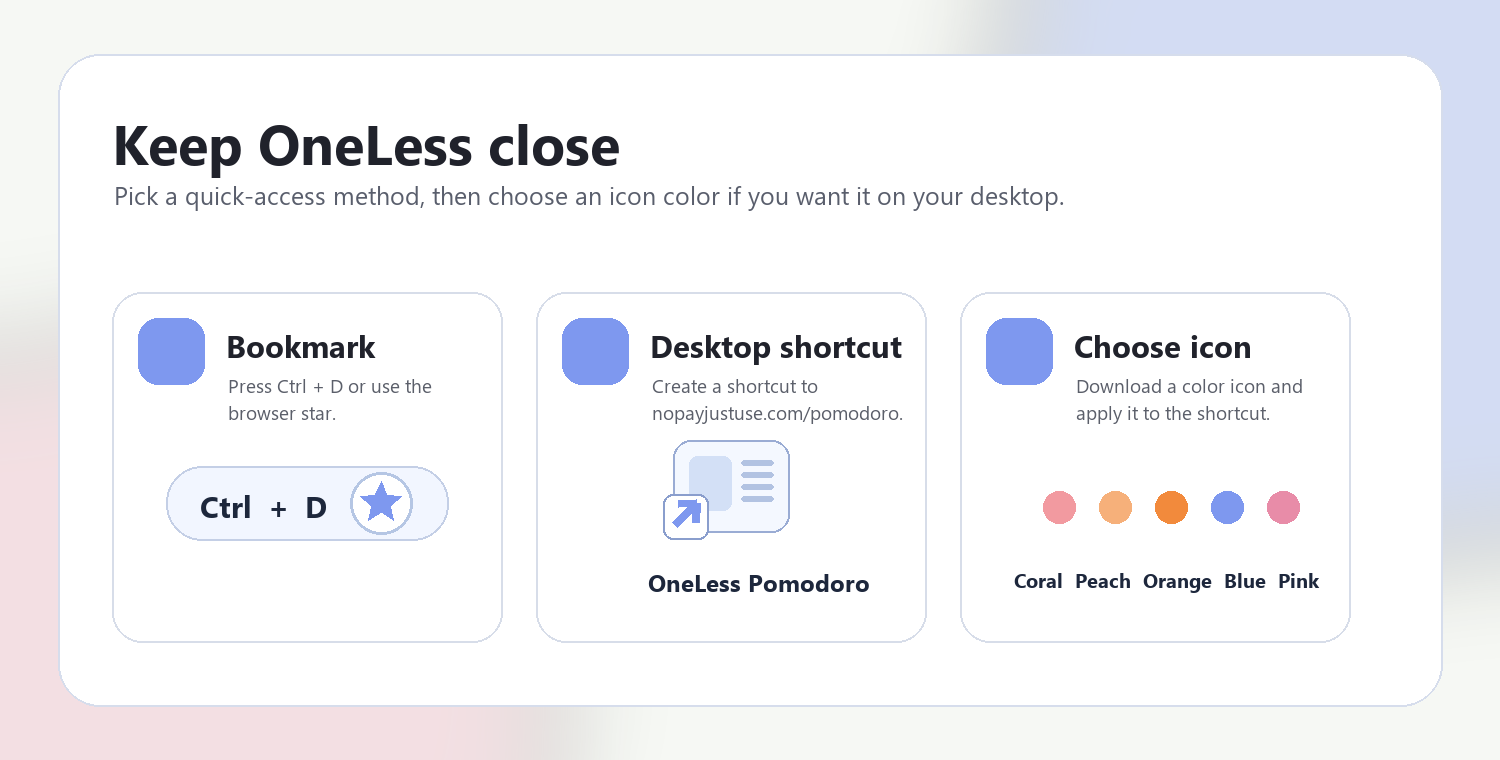
Download a PNG or ICO if your device lets you customize shortcut icons.
QUESTIONS, ANSWERED
No. It reads the header and displays the image. Copy summary copies text measurements, not the image or its bytes.
JPEG EXIF orientation can rotate or mirror a stored image. A quarter-turn swaps width and height. The checker shows both so the distinction stays visible.
Not necessarily. Focus, lens quality, noise, compression, and the source all affect the detail you can use. Megapixels measure the number of pixels.
It reports pixels rather than guessing a print resolution. For a chosen print density, divide the pixel dimension by pixels per inch to calculate inches.
It means the PNG or WebP header indicates support for transparent pixels. It does not claim that transparent pixels are actually used in the picture.
JPEG, PNG, and WebP files up to 25 MB, 16 megapixels, and 16,384 pixels per side are supported. Animated PNG and WebP can be identified here; the preview may animate. SVG, GIF, HEIC, and PDF are outside this release.
ANOTHER SMALL TASK?
Read the pixels, proportions, and file details without changing the image.
Return to Image Dimensions Checker ↑ Soft Coral
 Warm Peach
 Sunset Orange
 OneLess Blue
 Rose Pink