A turn changes direction
Right 90° turns clockwise; Left 90° turns counterclockwise. A quarter turn swaps the displayed width and height. A half turn makes the image upside down without mirroring its letters or other details.

ONELESS · IMAGE LIGHT
A sideways photograph, a tilted scan, or a graphic that needs a different direction can interrupt an otherwise simple task. Rotate Image gives the picture a large working surface and keeps the controls beside it. Turn by a quarter or half revolution, or enter a precise angle. The canvas grows around the result so the corners stay in the exported image.
Open Rotate Image · This tool needs JavaScript for image processing. The complete guide is available below.
UNDERSTAND THE RESULT
Right 90° turns clockwise; Left 90° turns counterclockwise. A quarter turn swaps the displayed width and height. A half turn makes the image upside down without mirroring its letters or other details.
At angles between quarter turns, the enclosing rectangle becomes larger. Empty corner areas are transparent in PNG and WebP, or white in JPEG. The tool does not crop those corners or stretch the original to fill them.
Fit keeps the result inside the working view. 100% shows one image pixel per CSS pixel and lets you scroll the preview. The dimensions reported beside Download describe the actual exported canvas, including any new empty space.
HOW TO USE IT
EVERYDAY USES
Turn the displayed photo left or right until its subject is upright. Existing supported EXIF orientation is applied before your rotation, so you adjust the picture you can actually see.
Use a small angle to make a line or edge level. This tool keeps the surrounding canvas. If you need to remove the resulting borders, download the image and open it in Crop Image.
Try different directions without overwriting the source. Inspect the dimensions before using the result in a slide, document, or image frame. A rotated landscape picture may need a taller space.
YOUR IMAGE, YOUR DEVICE
The selected image is read and processed in this browser. This tool does not upload the file to a server or save it in browser storage. Choosing another file or leaving the tool releases its working images. Downloaded copies remain wherever your browser saves them.
Every change starts from the original image in memory. Export creates a new raster file; original EXIF, camera information, and embedded profile metadata are not copied. Browser decoding and color management can affect the result, so keep your original for archival work.
This release handles one file at a time, up to 25 MB, 16 megapixels, and 16,384 pixels on either side. Animated images are rejected rather than flattened to one frame. Browser encoding support can vary. A failed export shows an error and never leaves an outdated result ready to download. Read the site privacy policy for the surrounding website.
File sizes and limits use decimal units: 1 KB = 1,000 bytes and 1 MB = 1,000,000 bytes. Rounded labels are for readability; target checks compare exact bytes.
KEEP IT NEARBY
Bookmark this page with Ctrl + D on Windows or Command + D on a Mac. To make a desktop shortcut, use your browser’s shortcut or Add to Home Screen option when available. The shortcut opens the tool page; it does not include your image or settings.
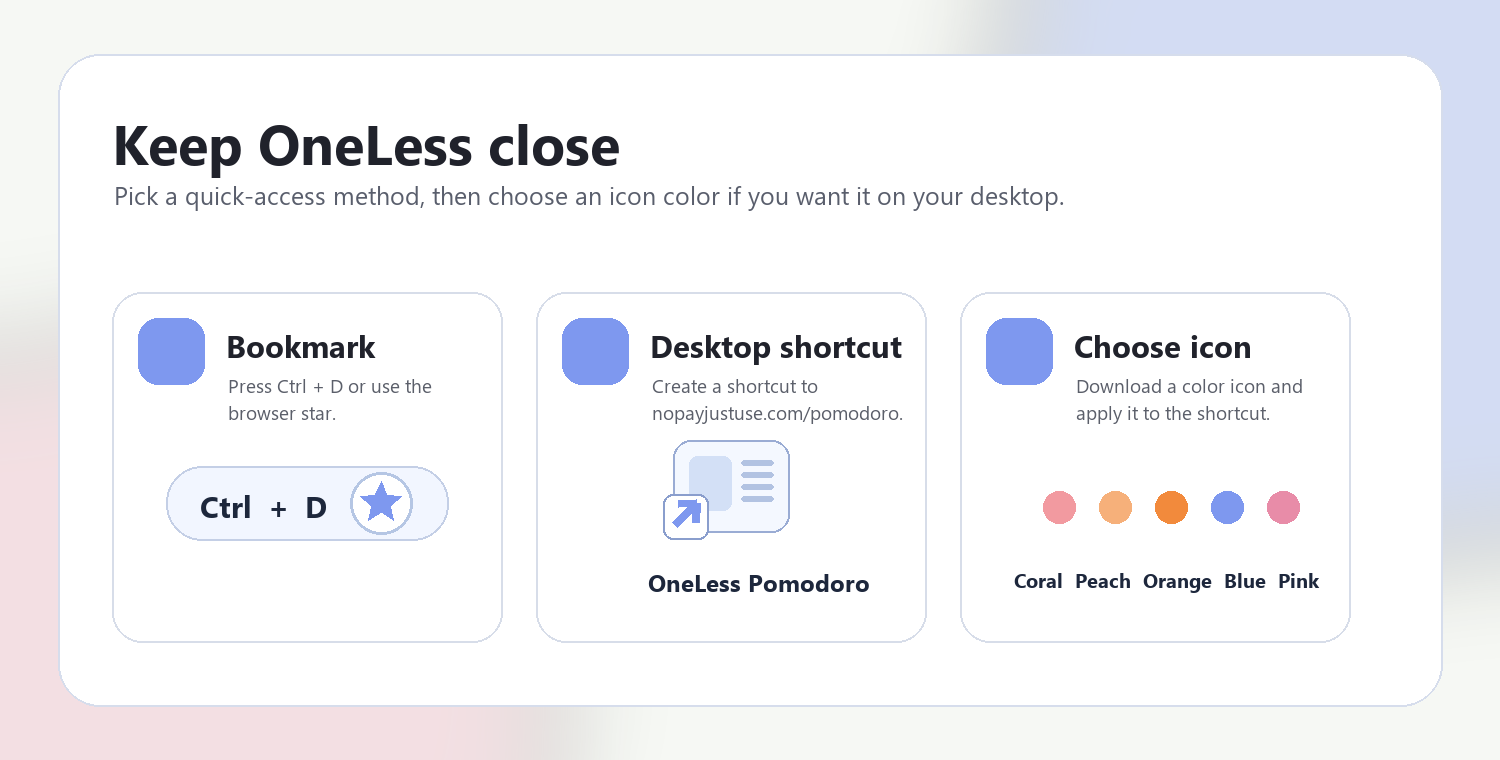
Download a PNG or ICO if your device lets you customize shortcut icons.
QUESTIONS, ANSWERED
No. It expands the output rectangle to include the rotated image. New corner space is transparent in PNG or WebP and white in JPEG.
Yes. Enter an angle between −180° and 180°. Positive is clockwise, negative is counterclockwise. The slider supports tenths of a degree, and the numeric field can be used directly.
It swaps width and height. A 1200 × 800 picture becomes 800 × 1200. At other angles, the bounding canvas can grow in both directions.
Quarter turns can preserve the decoded pixel arrangement, but JPEG and lossy WebP export re-encode it. Arbitrary angles resample pixels. PNG avoids an additional lossy encoding step, but cannot restore detail already missing from the source.
The expanded output must still fit the 16-megapixel and 16,384-pixel-per-side limits. A large source can fit before rotation but exceed the limit afterward. Resize it first or choose a smaller angle.
Each result is rendered from the original image with the current total angle. It does not rotate a previously encoded result again. Reset restores zero degrees and the original output settings.
ANOTHER SMALL TASK?
Turn a picture by 90°, or find the exact angle with every corner in view.
Return to Rotate Image ↑ Soft Coral
 Warm Peach
 Sunset Orange
 OneLess Blue
 Rose Pink