Left and right exchange places
A horizontal flip mirrors the picture across a vertical axis. A face looking left will look right, and written text will read backward. The top and bottom remain where they were.

ONELESS · IMAGE LIGHT
Sometimes the picture is the right way up but faces the wrong direction. Flip Image makes mirroring a visible choice: swap left with right, top with bottom, or both. The two direction cards show what each change means, and the original remains one click away for comparison. Download a separate image when its direction works for your next task.
Open Flip Image · This tool needs JavaScript for image processing. The complete guide is available below.
UNDERSTAND THE RESULT
A horizontal flip mirrors the picture across a vertical axis. A face looking left will look right, and written text will read backward. The top and bottom remain where they were.
A vertical flip reflects the picture across a horizontal axis. The top edge becomes the bottom, while left and right stay in their positions. Selecting both flips produces the same pixel arrangement as a 180° turn.
Mirroring preserves the displayed width and height. It does not crop, stretch, resize, or add borders. Transparent pixels move with the image when you choose PNG or WebP output.
HOW TO USE IT
EVERYDAY USES
A mirrored illustration can face toward a heading or another element. Check whether lettering, symbols, clothing, or other direction-sensitive details make the flipped version inappropriate.
Some camera previews and saved photographs use different left-right conventions. Compare the original and mirrored versions and choose the one you intended, rather than assuming every camera behaves the same way.
Use horizontal or vertical mirroring for a visual arrangement, a pattern, or an illustration. The tool reflects the entire raster image; it does not select and flip just one object inside it.
YOUR IMAGE, YOUR DEVICE
The selected image is read and processed in this browser. This tool does not upload the file to a server or save it in browser storage. Choosing another file or leaving the tool releases its working images. Downloaded copies remain wherever your browser saves them.
Every change starts from the original image in memory. Export creates a new raster file; original EXIF, camera information, and embedded profile metadata are not copied. Browser decoding and color management can affect the result, so keep your original for archival work.
This release handles one file at a time, up to 25 MB, 16 megapixels, and 16,384 pixels on either side. Animated images are rejected rather than flattened to one frame. Browser encoding support can vary. A failed export shows an error and never leaves an outdated result ready to download. Read the site privacy policy for the surrounding website.
File sizes and limits use decimal units: 1 KB = 1,000 bytes and 1 MB = 1,000,000 bytes. Rounded labels are for readability; target checks compare exact bytes.
KEEP IT NEARBY
Bookmark this page with Ctrl + D on Windows or Command + D on a Mac. To make a desktop shortcut, use your browser’s shortcut or Add to Home Screen option when available. The shortcut opens the tool page; it does not include your image or settings.
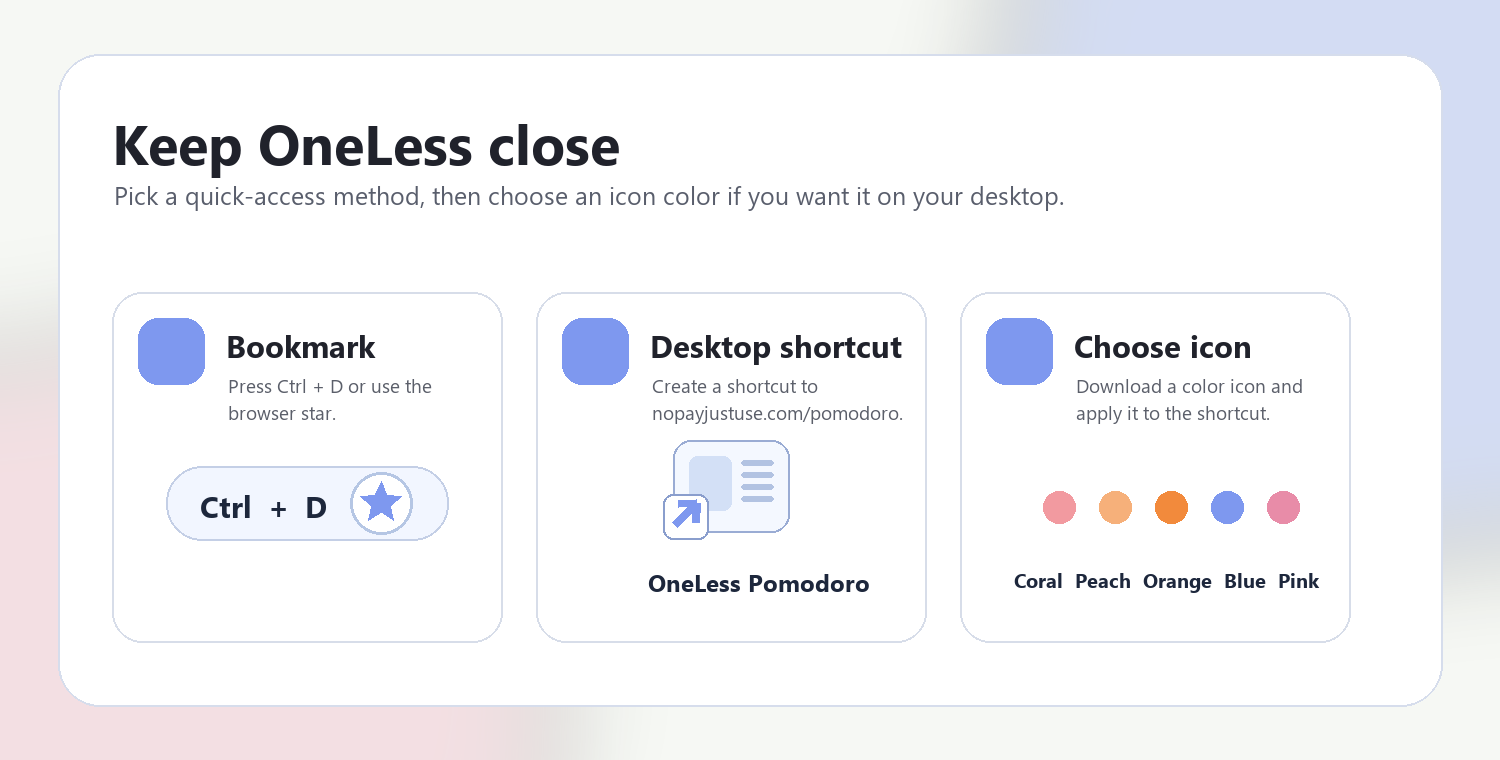
Download a PNG or ICO if your device lets you customize shortcut icons.
QUESTIONS, ANSWERED
Horizontal mirroring swaps left and right. Vertical mirroring swaps top and bottom. The direction cards include diagrams and plain-language labels so you do not have to remember the terminology.
Yes. Both buttons can be selected. The result is equivalent to a 180° rotation of the decoded picture, with the same width and height.
A horizontal flip mirrors everything, including text and logos. This tool does not detect lettering or correct it separately. Inspect the result before using it.
PNG and WebP output retain transparent pixels. JPEG cannot store transparency, so any transparent areas are composited onto white during export.
Clicking the same selected direction again turns that flip off. The result is regenerated from the original pixels, not from an already flipped and compressed copy.
The browser first decodes the source with supported orientation information. Flipping then changes those displayed pixels. The downloaded raster is newly encoded and does not copy the original EXIF orientation tag or other camera metadata.
ANOTHER SMALL TASK?
Mirror left and right, top and bottom, or both. See the direction before saving.
Return to Flip Image ↑ Soft Coral
 Warm Peach
 Sunset Orange
 OneLess Blue
 Rose Pink