A vector leaf illustration converted from SVG to PNG.

ONELESS · IMAGE LIGHT

SVG to PNG

A vector illustration can stay crisp at many sizes, but a form, document, or image editor may need a PNG. SVG to PNG renders a supported static SVG at the pixel dimensions you choose. Keep its transparent background or add a solid color, compare the visible result, and save a separate raster copy. The source stays available for another size, so each export begins with the vector rather than a previously scaled PNG.

Open SVG to PNG · This tool needs JavaScript for image processing. The complete guide is available below.

UNDERSTAND THE RESULT

A little context before the next click.

Vector source, pixel output

SVG describes shapes, positions, fills, and text. PNG stores a grid of pixels. Choose an output size that matches where you will use the image. A larger PNG has more pixels and can take more memory even when the SVG source is small.

The SVG frame matters

A viewBox defines the source coordinate frame. The renderer uses explicit absolute width and height when available, or derives missing dimensions from a valid viewBox. If there is no usable size, it asks for a better source rather than guessing a 300 × 150 canvas.

A deliberately static workflow

This release supports common shapes, paths, text, gradients, clipping, masks, patterns, and bounded local use references. Scripts, animation, external or embedded resources, foreignObject, filter effects, and style elements are rejected. Inline presentation attributes and static inline styles are supported. The error names unsupported content rather than silently stripping visible artwork.

HOW TO USE IT

From an original to a clear next step.

  1. Choose or drop a .svg file up to 1 MB, paste complete SVG markup, or try Sample. Pasted source should include the SVG namespace and valid XML.
  2. Select Render PNG after editing the source. File selection and Sample initialize the output dimensions from the SVG.
  3. Enter a pixel width or height, keep proportions if needed, or use 1×, 2×, and 3× from the source dimensions. Choose Transparent, White, or Dark green for the background.
  4. Inspect the actual PNG preview and measured file size. Download PNG creates a separate file. Keep the SVG when you may need another resolution later.

EVERYDAY USES

Small image tasks, with room to see.

A logo for a document

Export a transparent PNG at the size your document needs. Check the edges against the checkerboard before saving so empty areas do not surprise you later.

An icon for a fixed pixel slot

Set a specific width and keep proportions. Use the exported pixel dimensions, rather than the apparent size of the preview, when checking a destination requirement.

An illustration with a background

Select white or dark green when the destination needs an opaque image. The background becomes part of the PNG and does not modify the SVG source.

YOUR IMAGE, YOUR DEVICE

Local processing. A separate result.

Files, code, and calculation values are processed in this browser and are not uploaded by the tool or saved in browser storage. Clear removes the working result. Leaving the page releases its temporary image URLs. Copies you put on the clipboard or download remain under your control. Share copies the tool address without your input.

SVG is parsed and validated before it is rendered in an isolated image context. Its source is never mounted as page HTML. PNG export creates a new raster file and does not retain vector editing data or source metadata. Keep the SVG for future editing.

The SVG input limit is 1 MB and 10,000 elements, with bounded local references. Output is limited to 16 MP and 16,384 pixels per side. Browser rendering and installed fonts can vary. Unsupported source content and invalid dimensions disable download until corrected.

Read the site privacy policy for the surrounding website.

File sizes and limits use decimal units: 1 KB = 1,000 bytes and 1 MB = 1,000,000 bytes. Rounded labels are for readability; target checks compare exact bytes.

KEEP IT NEARBY

One less search next time.

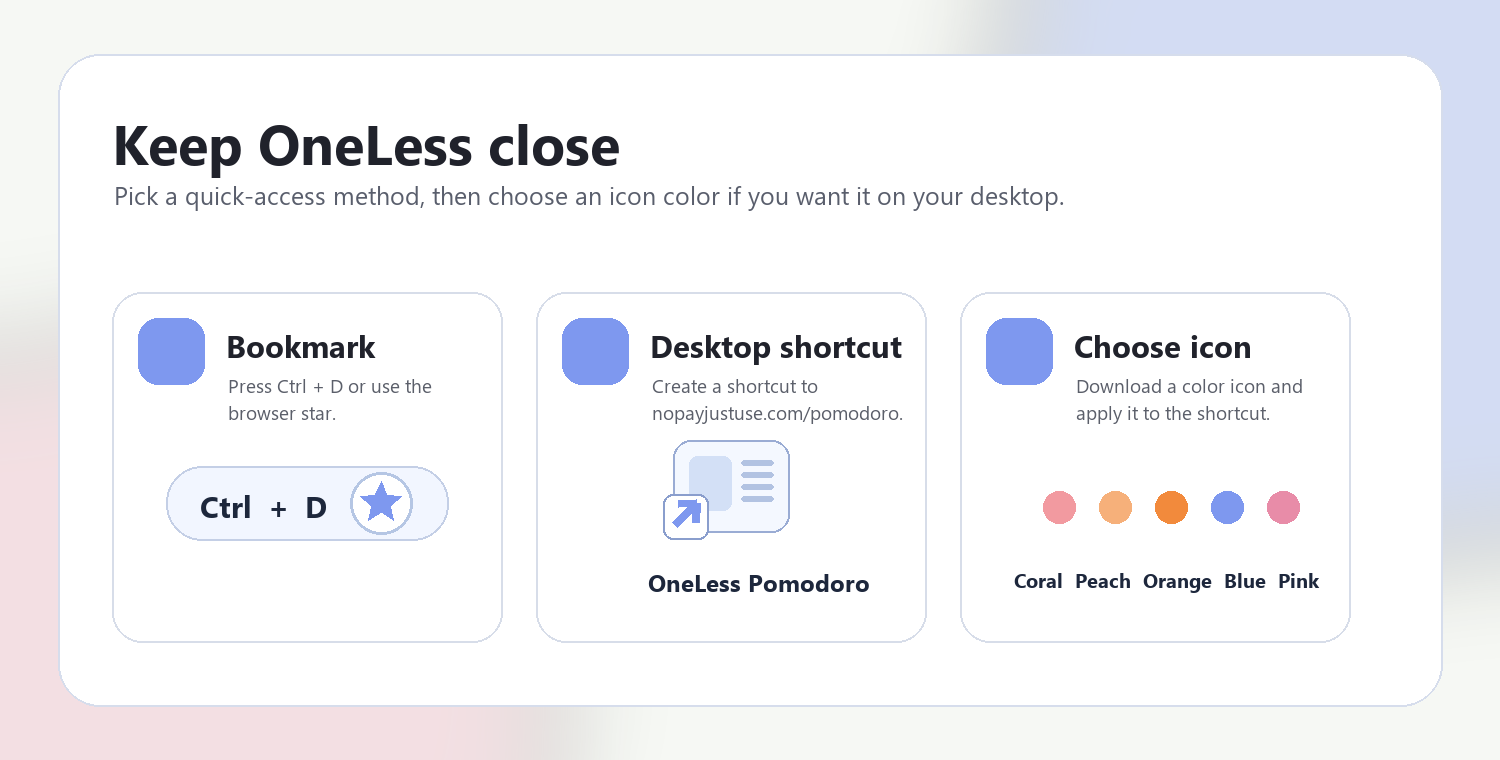
Bookmark this page with Ctrl + D on Windows or Command + D on a Mac. To make a desktop shortcut, use your browser’s shortcut or Add to Home Screen option when available. The shortcut opens the tool page; it does not include your image or settings.

Guide to adding a OneLess browser shortcut

Choose a OneLess shortcut icon

Download a PNG or ICO if your device lets you customize shortcut icons.

QUESTIONS, ANSWERED

Before you save or share.

Why are some SVGs rejected?

SVG can include active content, linked resources, complex effects, and stylesheets. This release supports a bounded static subset. Inline stylesheet rules, outline effects, and remove external dependencies in the source editor first.

Will text look identical everywhere?

Not necessarily. SVG text uses fonts available to the browser. Convert lettering to paths in your design app when an exact appearance matters.

Does 2× use the previous PNG?

No. The scale presets use the original SVG dimensions, and every export renders the vector source again.

Can PNG remain transparent?

Yes. Transparent is the default. The checkerboard belongs to the preview and is not drawn into the saved PNG.

What is the output limit?

Output must have positive whole-pixel dimensions, at most 16,384 per side and 16 megapixels overall. Large source dimensions that already exceed those limits are rejected.

Are linked images downloaded?

No. External and embedded resource references are rejected by this release. Only local #id references within the SVG are allowed.

ANOTHER SMALL TASK?

Keep the next step close.

Ready for the image in front of you?

Give a vector a pixel size, a background, and a place to go.

Return to SVG to PNG ↑